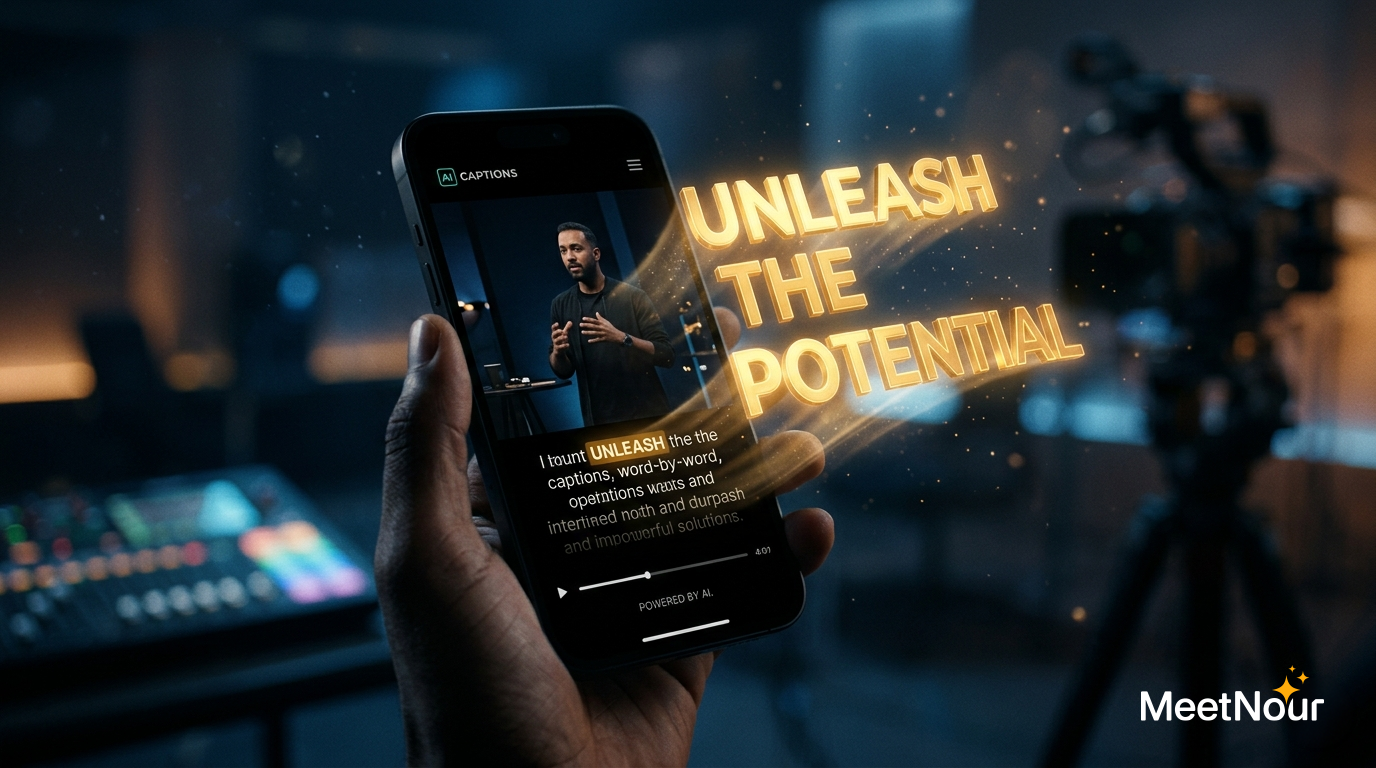
How to Add AI Captions to Instagram Reels (2026 Guide)
Why Your Reels Need Captions (It’s Not Optional)
Let’s start with the numbers that matter:
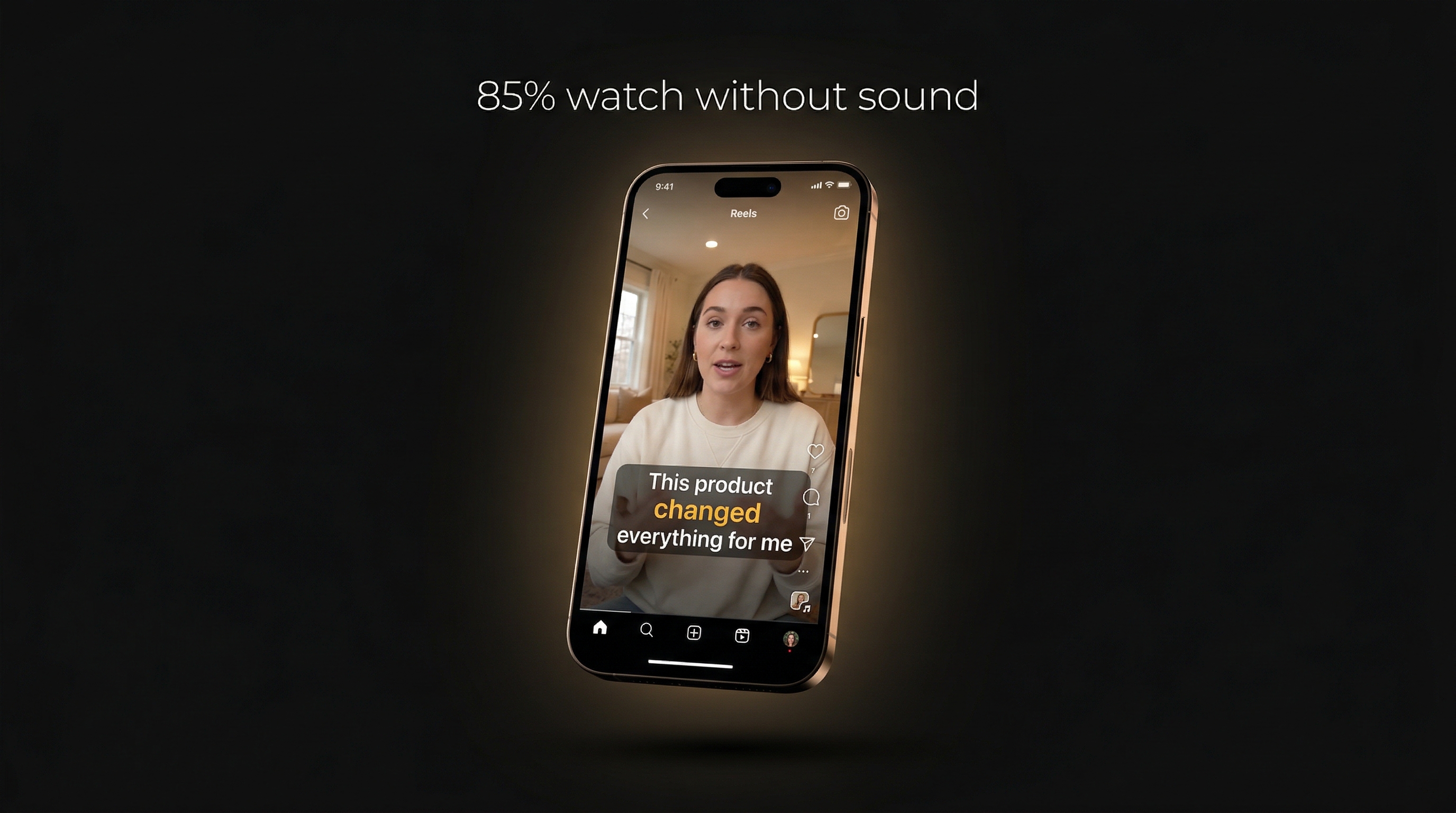
- 85% of Instagram Reels are watched with the sound off
- 80% of viewers watch longer when captions are present
- 40% higher engagement on captioned vs uncaptioned Reels
- Instagram’s algorithm favors captioned content because it keeps people on the platform longer
If you’re posting Reels without captions in 2026, you’re essentially showing a silent movie to an audience that can’t lip-read. You’re losing 85% of your potential viewers.
The 3 Ways to Add Captions to Reels
Option 1: Instagram’s Built-In Captions
Instagram has auto-caption stickers. They’re free, built-in, and… limited.
Pros: Free, no extra tool needed Cons: Limited styling options, no animation, inaccurate for non-English languages, can’t edit word timing, no export control
If all you need is basic text on screen, Instagram’s built-in option works. But if you want captions that actually drive engagement — animated, styled, branded — you need a dedicated tool.
Option 2: Edit Manually in CapCut
CapCut’s auto-caption feature is the most popular option among creators. Import your Reel, tap auto-captions, choose a style.
Pros: Free tier available, good template selection, integrated editor Cons: Limited animation styles, poor Arabic/RTL support, captions sometimes mistime, separate app from your content workflow
Option 3: AI-Powered Caption Studio (Best Quality)
Dedicated AI captioning tools like MeetNour’s Caption Studio use advanced speech-to-text models (Deepgram Nova-3) for word-level accuracy, then let you style and animate each caption precisely.
Pros: Word-level timing, 14+ animation styles, full styling control, Arabic RTL support, export as SRT/VTT/ASS or burned-in video Cons: Uses credits (but minimal — transcription is cheap)
Step-by-Step: Adding AI Captions to Your Reel
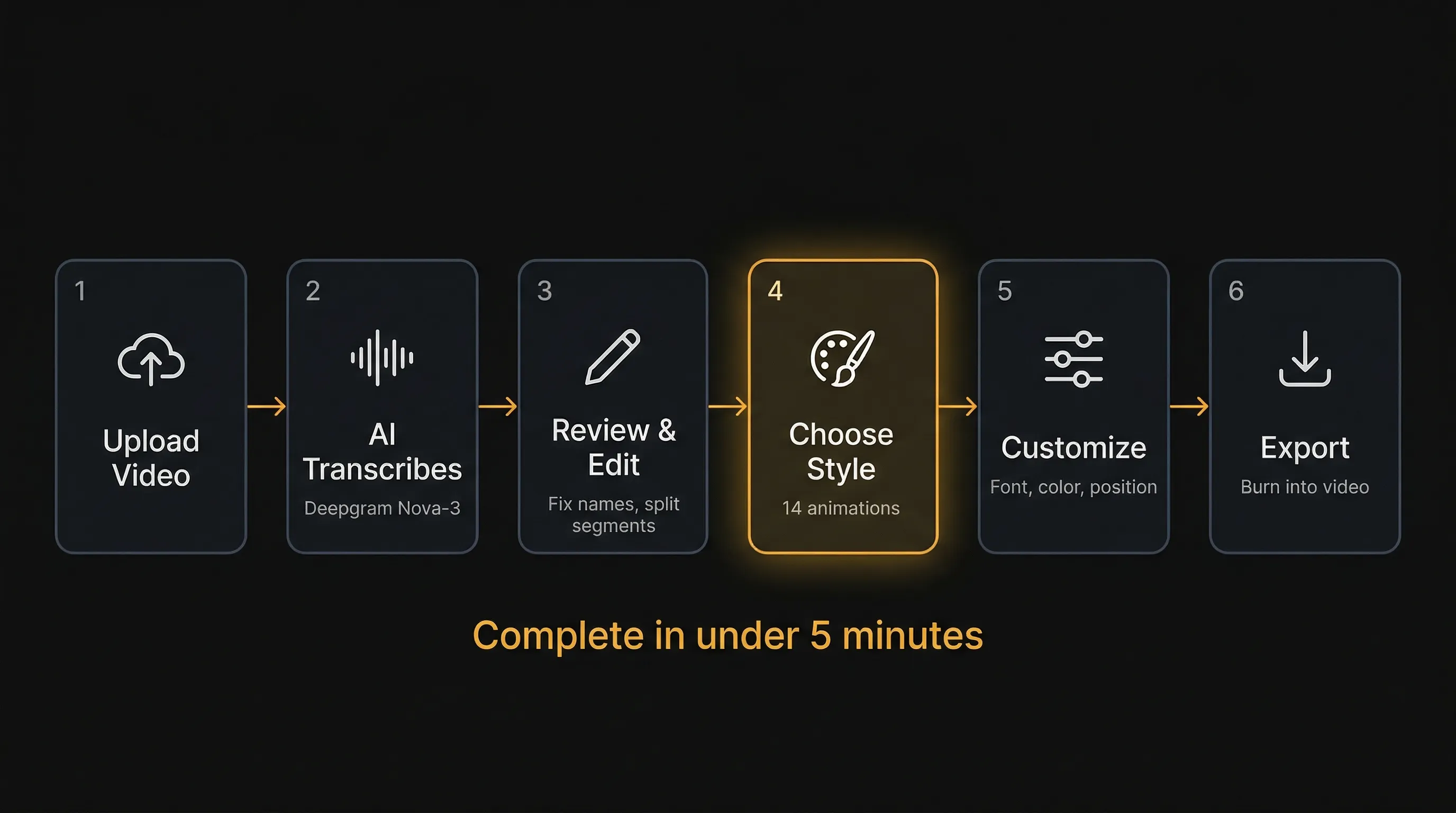
Here’s the complete workflow using a dedicated AI caption tool:
Step 1: Upload Your Video
Upload your Reel video (up to 90 seconds). The AI extracts the audio track and begins transcription.
Tip: For best results, ensure your audio is clear. Background music should be quieter than speech. If you’re using an AI voiceover, the transcription will be nearly perfect since the audio is clean.
Step 2: AI Transcription (Automatic)
The speech-to-text model transcribes every word with precise timestamps — not just sentence-level, but word-by-word. This is critical for animated captions where each word highlights as it’s spoken.
Modern models like Deepgram Nova-3 handle:
- Multiple speakers
- Background noise
- Accents and dialects
- Arabic, Hebrew, and other RTL languages with correct text direction
- 30+ languages total
Step 3: Review and Edit the Transcript
The AI isn’t perfect 100% of the time. Quickly scan through the transcript and fix any errors:
- Split long captions into shorter segments (2-5 words per screen is optimal for Reels)
- Merge fragments that were split too aggressively
- Fix any misheard words (brand names are common culprits)
- Adjust timing if a word appears slightly early or late
This takes 1-2 minutes for a 30-second Reel.
Step 4: Choose Your Caption Style
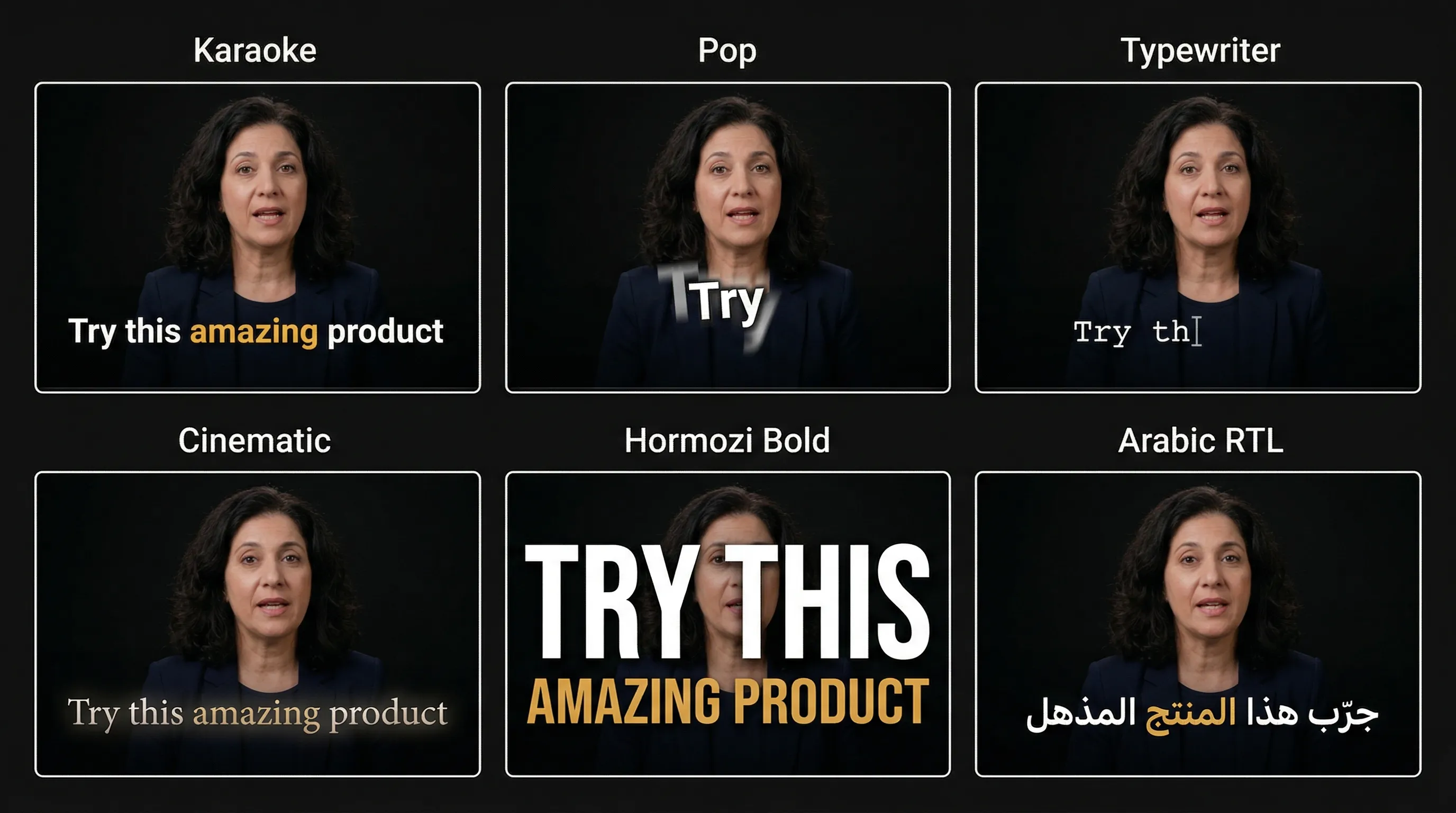
This is where your captions go from functional to scroll-stopping. The most engaging styles for Reels in 2026:
Word-by-Word Highlight (Karaoke)
Each word lights up as it’s spoken. This is the #1 most engaging caption style on Reels — it keeps viewers reading along and dramatically improves watch time.
Pop Animation
Words bounce onto screen with elastic energy. Perfect for upbeat, fast-paced content.
Typewriter
Letters appear one by one. Creates anticipation. Great for storytelling Reels.
Cinematic
Subtle fade with slight zoom. Professional look for brand content.
Hormozi Style
Bold text, large font, high contrast. Named after the internet marketing style that dominates business Reels. Words punch onto screen with emphasis on key phrases.
Step 5: Style Your Captions
Beyond animation, customize:
- Font — Choose one that matches your brand. Arabic creators: use Arabic-optimized fonts like Cairo, Almarai, or Tajawal for proper rendering
- Color — Active word color + inactive word color. High contrast is key for readability
- Size — Bigger than you think. Viewers are on phones — 40-60px minimum
- Position — Bottom-center is standard. For Reels, keep captions in the middle-to-lower third to avoid the UI overlay
- Background — Semi-transparent background behind text improves readability over busy visuals
Step 6: Export
Two options:
Burned-in video (recommended for Reels): The captions are rendered directly into the video file. What you see is what viewers see, regardless of whether they have subtitles enabled. This preserves all your animation and styling.
Subtitle file (SRT/VTT): A separate text file that platforms can display as an overlay. Instagram supports uploading SRT files for Reels. However, you lose all custom styling and animation — the platform applies its own plain text format.
For Reels, always use burned-in. Your carefully designed animations won’t carry through subtitle files.
22 Languages — Not Just English
Most caption tools treat English as default and everything else as an afterthought. But half the world’s content creators don’t speak English as their first language.
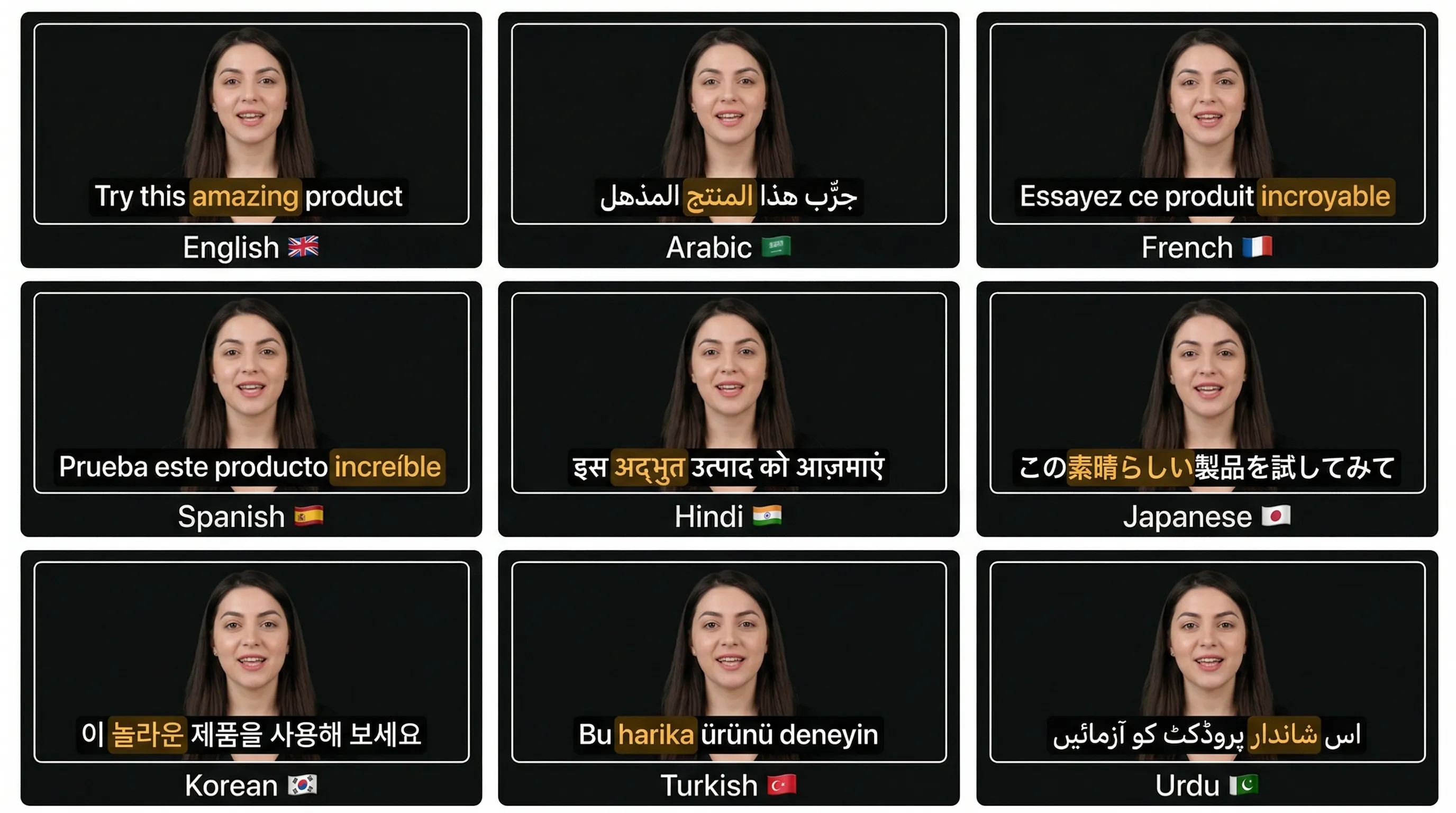
MeetNour’s Caption Studio supports 22 languages natively via Deepgram Nova-3:
| Category | Languages |
|---|---|
| European | English, French, German, Spanish, Italian, Portuguese, Dutch, Polish, Danish, Finnish, Norwegian, Swedish, Ukrainian |
| Middle Eastern | Arabic (with 5 dialect options), Turkish, Urdu |
| Asian | Chinese (Mandarin), Hindi, Japanese, Korean, Indonesian |
| Slavic | Russian, Ukrainian, Polish |
Arabic Gets Special Treatment
Arabic isn’t just another language in a dropdown. MeetNour treats it as a first-class citizen with 5 dialect options:
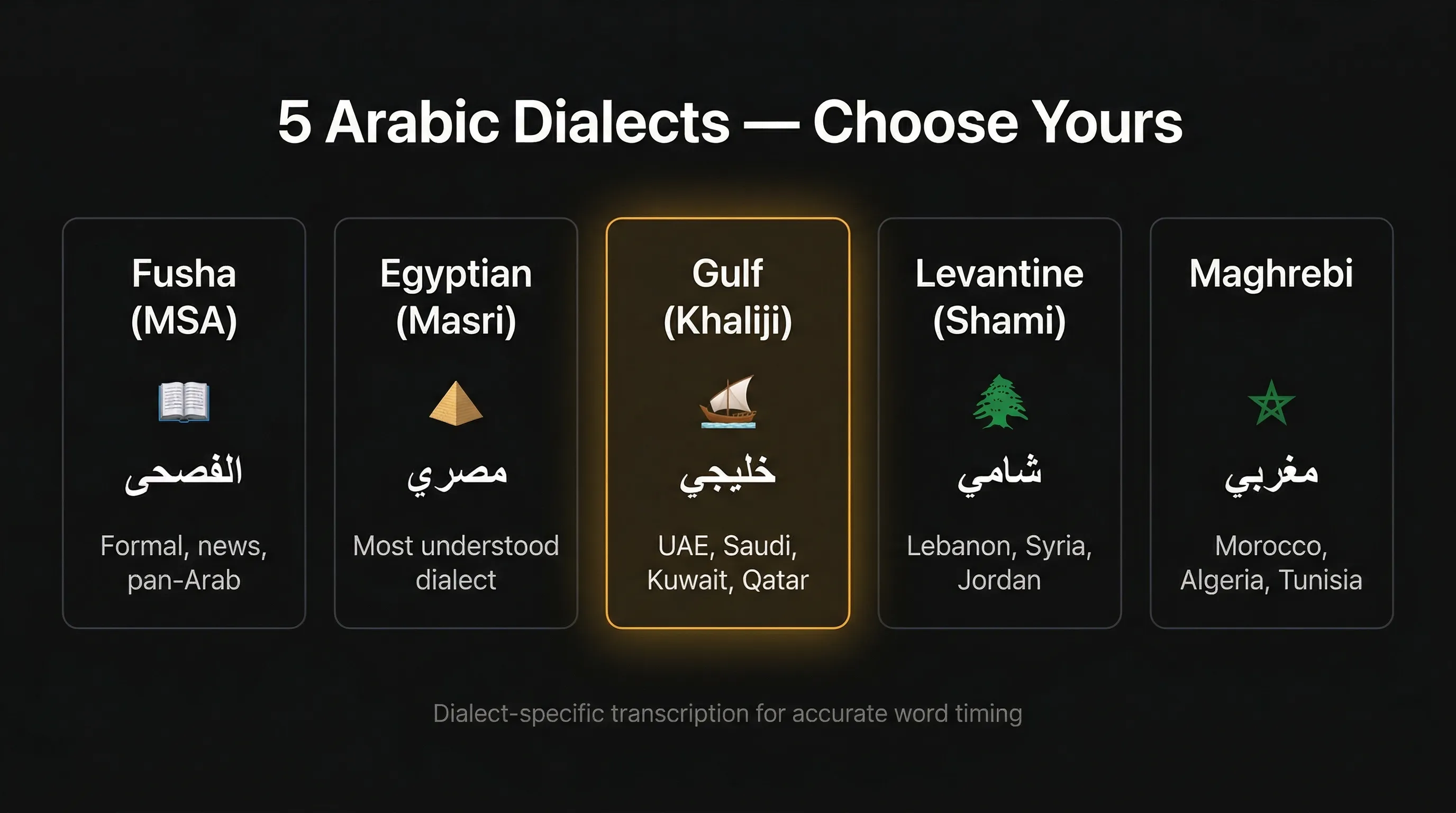
- Modern Standard Arabic (Fusha) — news, formal content, pan-Arab audience
- Egyptian (Masri) — the most widely understood Arabic dialect
- Gulf (Khaliji) — UAE, Saudi Arabia, Kuwait, Qatar, Bahrain
- Levantine (Shami) — Lebanon, Syria, Jordan, Palestine
- Maghrebi — Morocco, Algeria, Tunisia
This matters because a Gulf Arabic speaker says words differently than an Egyptian Arabic speaker. The transcription model needs to know the dialect to get the timing right.
RTL Languages — The Gap Most Tools Miss
If you create content in Arabic, Urdu, or Hebrew, you’ve probably experienced the frustration: reversed text, broken characters, wrong alignment.
Most caption tools were built for English first. The result: Arabic captions that read backwards — المذهل المنتج هذا جرّب instead of the correct جرّب هذا المنتج المذهل — don’t connect properly, or display left-aligned instead of right-aligned.
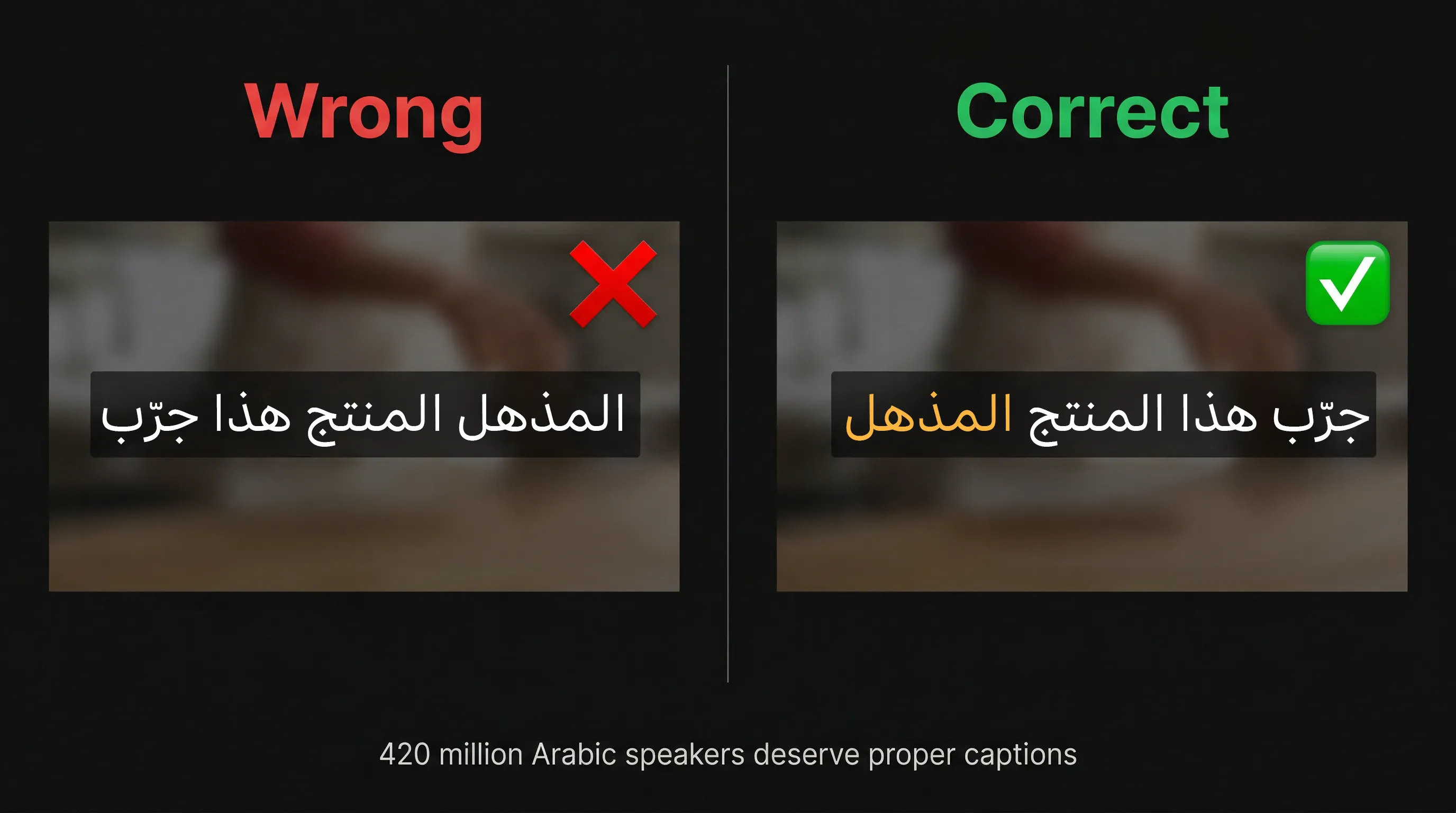
What proper RTL caption support looks like:
- Automatic RTL detection — detects Arabic/Urdu text and switches direction without manual settings
- Arabic font library — Generic Latin fonts don’t render Arabic properly. You need Cairo, Almarai, Tajawal, Noto Kufi Arabic, or Amiri
- Proper text shaping — Arabic characters change form based on position (beginning, middle, end of word). The tool must handle ligatures
- Right-aligned positioning — Captions naturally align to the right for RTL languages
CJK Languages — Characters That Need Space
Chinese, Japanese, and Korean captions have their own requirements: each character needs proper spacing, line breaks can’t split in the middle of a word (which works differently than Latin scripts), and font rendering must support thousands of glyphs. Deepgram Nova-3 handles word-level timing for all three.
Hindi & Urdu — The Devanagari/Nastaliq Challenge
Hindi (Devanagari script) and Urdu (Nastaliq script) both have unique rendering needs. Urdu is RTL like Arabic. Hindi is LTR but uses complex character combinations. Both have over 600 million speakers combined — and both are poorly served by most Western caption tools.
Caption Mistakes That Kill Engagement
Too many words per screen — More than 5-6 words at once makes viewers stop reading and scroll away. Split long sentences.
Too small — If viewers have to squint on their phone, they’ll scroll. Go bigger.
Wrong position — Captions overlapping Instagram’s UI (profile icon, like button, comments) are unreadable. Stay in the safe zone.
No animation — Static text is invisible on fast-paced content. Even subtle animation draws the eye.
Bad timing — Words appearing before or after they’re spoken is disorienting. Word-level AI transcription fixes this.
How MeetNour’s Caption Studio Works
Caption Studio handles the entire workflow in one place:
- Deepgram Nova-3 transcription — fast, accurate, word-level timing across 22 languages
- 5 Arabic dialects — Fusha, Egyptian, Gulf, Levantine, Maghrebi (the only tool with dialect-specific transcription)
- 14 animation styles — Fade, Pop, Bounce, Slide, Zoom, Typewriter, Karaoke, Word Reveal, Glow, Spotlight, Artistic, Cinematic, Stamp, Static
- 10 style presets — One-tap looks including Classic Fade, Bold Pop, Neon Karaoke, Hormozi, and more
- 18 fonts in 6 groups — Including 5 Arabic fonts (Cairo, Almarai, Tajawal, Noto Kufi Arabic, Amiri)
- Full RTL support — Automatic detection for Arabic, Urdu, and Hebrew with proper text shaping and right-alignment
- CJK support — Proper character spacing and line breaks for Chinese, Japanese, and Korean
- Split and merge — Fine-tune caption segments for perfect pacing
- Export options — SRT, VTT, ASS, or burned-in video with FFmpeg rendering
- Figma-style project management — Save multiple caption projects, switch between them with tabs
And because it’s part of MeetNour, you can generate the Reel in AI Studio, caption it in Caption Studio, plan it in the Social Planner grid, and schedule it — one platform, no switching.

Create professional content
in minutes, not days.
One platform for AI images, videos, voiceovers, music, captions, and social planning. 30+ AI models. Zero complexity.