AI Camera Movements: 50 Moves and When to Use Each
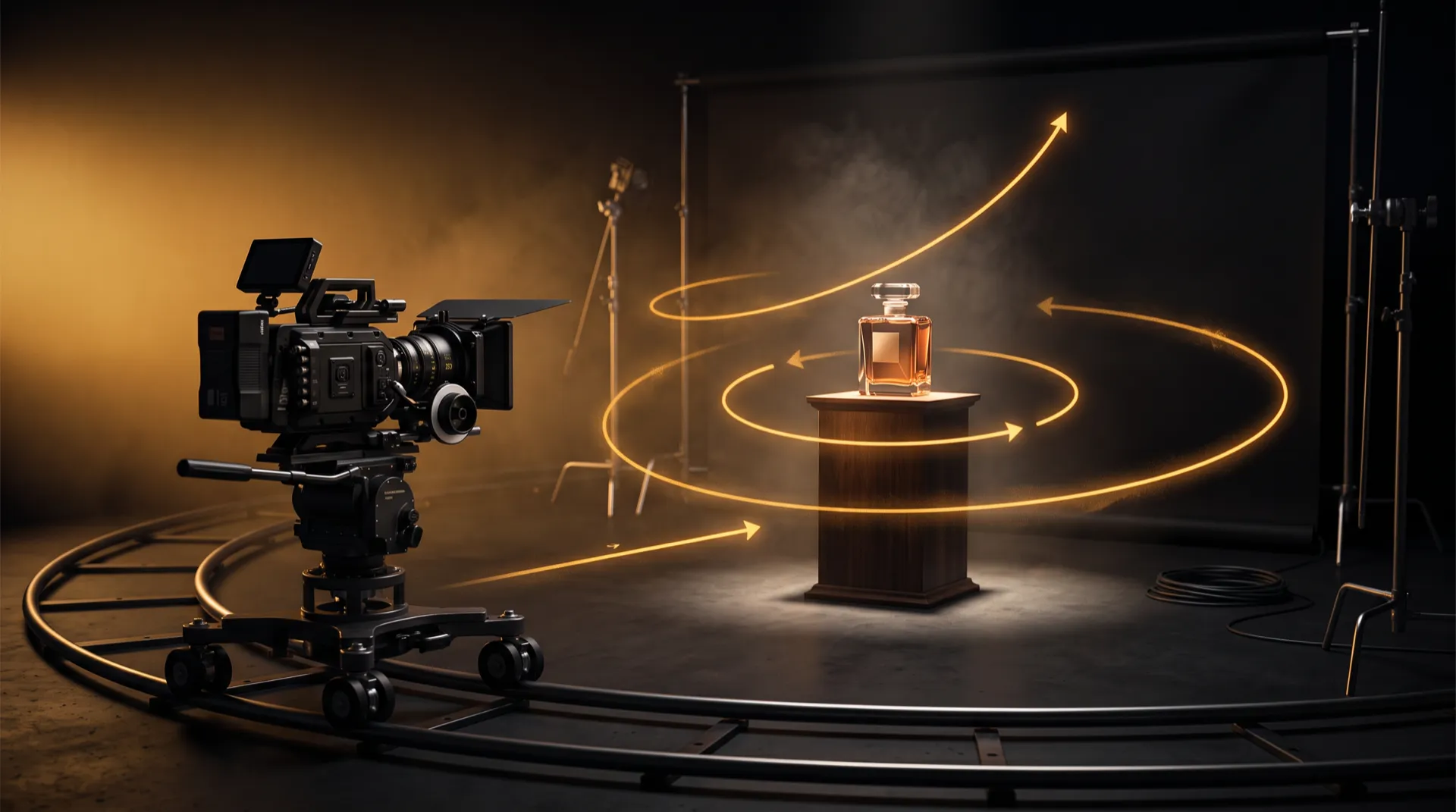
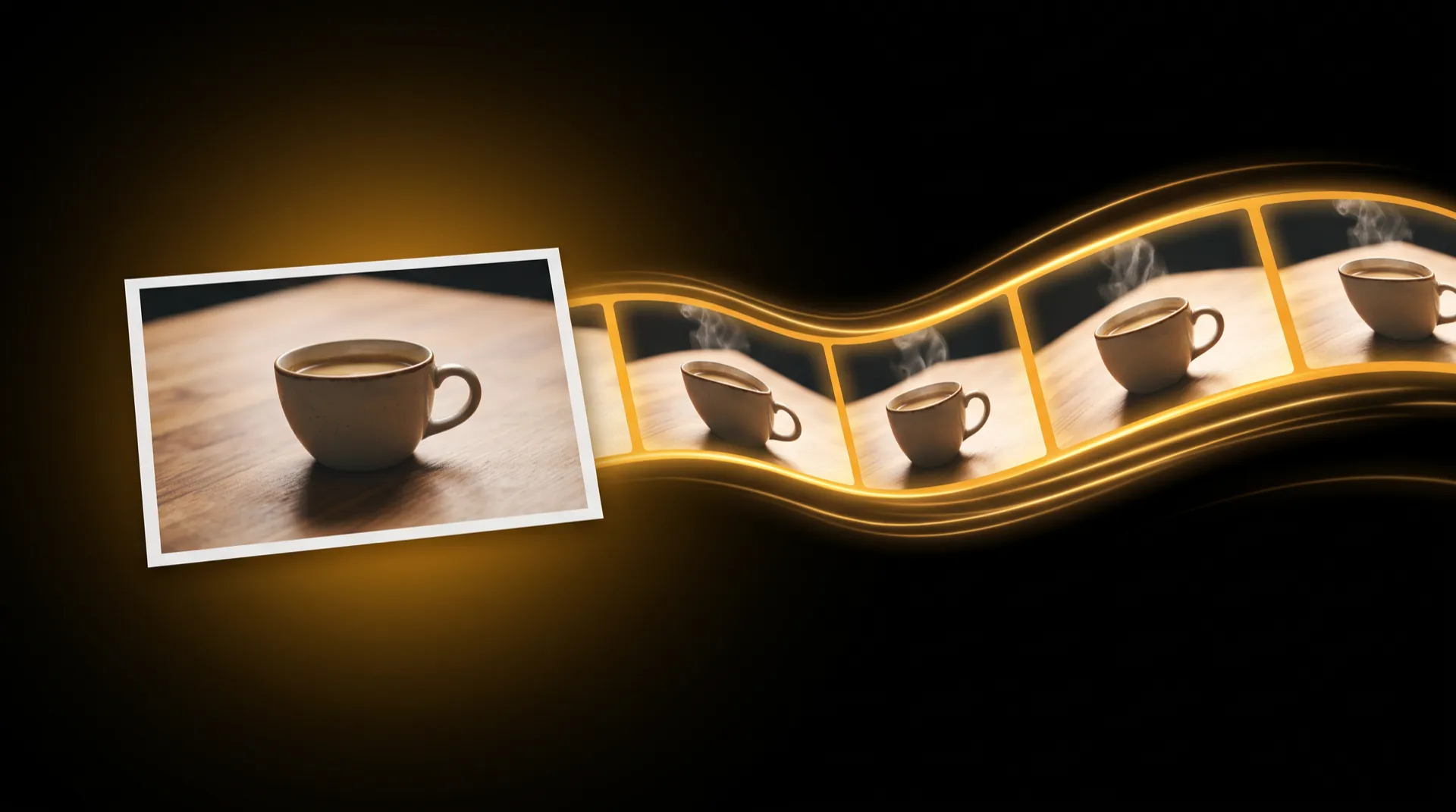
AI camera movements are the named shots you ask a video model for (orbit, push in, crane up, rack focus, whip pan) so the clip moves like a real camera instead of drifting at random. Each move does one job: an orbit shows form, a push in builds attention, a drone rise reveals scale. This page lists 50 moves in five groups, with what each does and when to use it, plus how to prompt a move when your tool has no presets.
The list follows the 50 one-tap moves in MeetNour’s Cinematic Shots, using the same names and groups.
How to read this list
Three rules apply to every move below:
- One move per clip. Ask for one camera idea. Two moves in one short clip usually means neither is done well.
- Camera or subject, decide which moves. Most moves work best when the subject holds still and only the camera travels. A few (tracking, entrance, exit, speed effects) need the subject to move.
- The camera reveals what the photo never showed. Starting from a photo, any angle the camera discovers is invented by the model. Gentler moves stay closer to your source.
Camera moves
Moves where the camera itself travels through space.
| Move | What it does | Use it for |
|---|---|---|
| Orbit 360 | Smoothly circles all the way around the subject. | Products and sculptures you want shown from every side |
| Orbit left | Circles around the subject toward the left. | Fashion and products; a safer partial orbit |
| Orbit right | Circles around the subject toward the right. | The same, mirrored, so two clips can cut together |
| Drone fly | A sweeping aerial camera flight. | Landscapes, travel, opening a video |
| Drone rise | The camera lifts straight up like a drone taking off. | Revealing scale: a person on a cliff, a house on its land |
| Drone dive | A fast descending aerial move toward the subject. | Energetic openers that land on the subject |
| Push in | Slowly moves the camera toward the subject. | Portraits and emotional beats; the safest all-rounder |
| Pull out | Moves backward to reveal more of the scene. | Endings, or showing where the subject is |
| Dolly in | A controlled cinematic forward move. | Like a push in, with more depth shifting behind the subject |
| Dolly out | A smooth cinematic backward move. | Calm endings and context reveals |
| Tracking shot | The camera follows the subject as it moves. | People walking, cars driving, action |
| Side tracking | The camera slides alongside the subject. | Walking shots seen in profile, fashion |
| Crane up | Rises vertically for a dramatic reveal. | Finales; showing a crowd, a venue or a set |
| Crane down | Descends toward the subject. | Arriving at the subject from above |
| Arc shot | Moves in a gentle arc around the subject. | Portraits and products, softer than a full orbit |
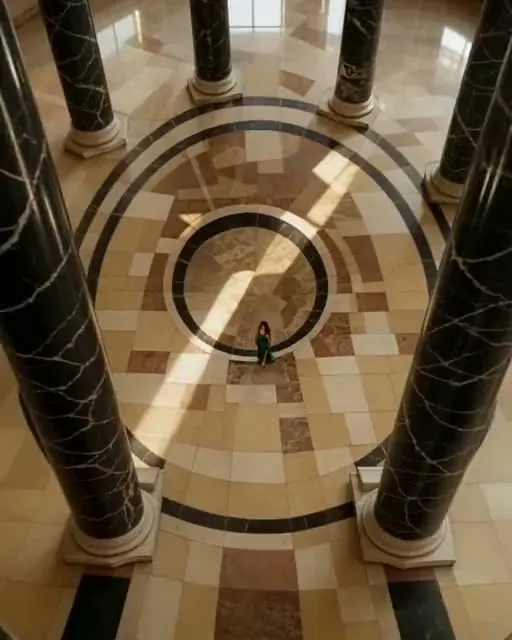
Focus & lens
Moves that change what is sharp, how close we are, or the angle we look from.
| Move | What it does | Use it for |
|---|---|---|
| Focus pull | Shifts focus from one element to another. | Moving attention from a person to an object, such as a product |
| Rack focus | A cinematic focus shift between foreground and background. | Revealing the subject behind a foreground object |
| Shallow depth | Strong background blur, subject sharp. | Portraits and products against a busy background |
| Deep focus | Keeps the whole scene sharp. | Rooms, real estate, scenes where every detail matters |
| Macro shot | An extreme close-up on detailed textures. | Food, fabric, jewelry, skincare textures |
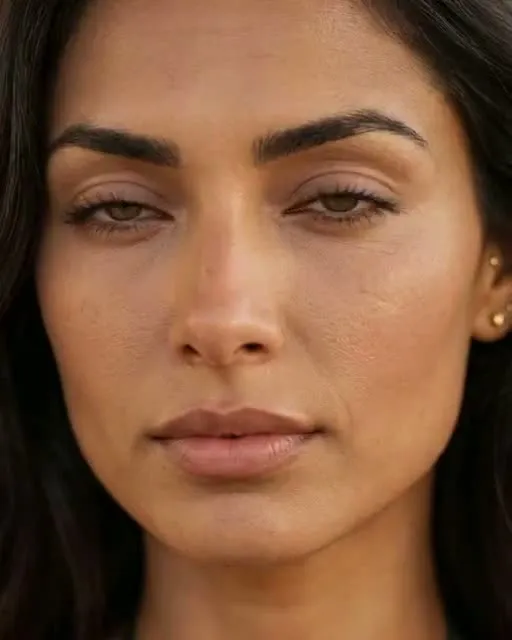
| Close up | Tightens attention onto the subject. | Faces, emotion, product details |
| Wide shot | Reveals the surrounding environment. | Context: where we are and how big it is |
| Low angle | Looks up at the subject for a powerful feel. | Confident portraits, hero products, architecture |
| High angle | Looks down toward the subject from above. | Vulnerability, overviews, people in a space |
| Top down | A direct overhead perspective. | Food, flat lays, desks, floor patterns |
Speed & motion
Moves that change time or the feel of the camera.
| Move | What it does | Use it for |
|---|---|---|
| Speed ramp | Slows down, then snaps to speed. | Sport, dance, fashion turns, energetic edits |
| Slow motion | Dramatic, silky slow motion. | Hair, fabric, water, emotional moments |
| Fast motion | Speeds up the action. | Busy cities, clouds and traffic, time passing |
| Whip pan | A rapid pan with motion blur. | Transitions between two clips |
| Crash zoom | Zooms in fast for impact. | Hooks, punchlines, reaction moments |
| Smooth zoom | A controlled cinematic zoom. | A calm push toward a face without moving the camera |
| Handheld | Subtle handheld movement. | Documentary, behind the scenes, creator-style content |
| Steadicam | Smooth stabilized glide. | Walkthroughs of rooms, shops and venues |
| Shaky cam | Controlled instability for intensity. | Tension, action, urgency |
| Motion blur | Natural blur on fast movement. | Making fast action read as fast |
Signature shots
Named shots from film language, each with a clear purpose.
| Move | What it does | Use it for |
|---|---|---|
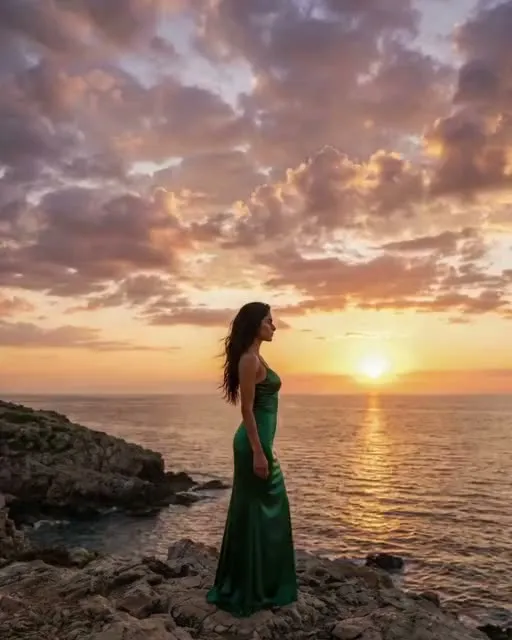
| Epic shot | Turns the image into a dramatic cinematic moment. | Trailers, launches, big statements |
| Hero shot | Frames the subject like a movie hero. | Founders, athletes, flagship products |
| Establishing shot | Reveals the environment before the subject. | The first shot of a story; places and venues |
| Reveal shot | Gradually reveals the subject. | Product launches, before-and-after moments |
| Dramatic reveal | A more intense cinematic reveal. | Launches and teasers that need more weight |
| Cinematic entrance | A dramatic introduction of the subject. | Introducing a person or a spokesperson |
| Cinematic exit | A cinematic departure from the scene. | Endings and sign-offs |
| POV shot | First-person perspective. | Immersive content, “come with me” clips |
| Over shoulder | From behind the subject’s shoulder. | Showing what the subject sees: a screen, a view, a product |
| Two shot | Frames two subjects together. | Couples, duos, conversations, testimonials with two people |
Effects
Moves that add depth, light or a finished look.
| Move | What it does | Use it for |
|---|---|---|
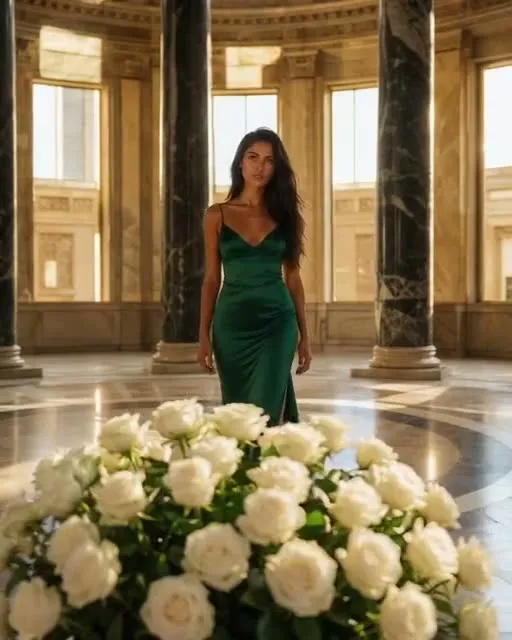
| Parallax | Layered depth between foreground and background. | Bringing still scenes, interiors and landscapes to life |
| 360 reveal | A circling move with a dramatic reveal. | Product and fashion launches, with a sweep of light |
| Dynamic perspective | A strong change in perspective during the shot. | Energetic openers and transitions |
| Cinematic transition | Moves smoothly from one photo into another. | Location changes, before and after, two looks |
| Film look | A classic cinematic film treatment. | Giving any clip a cinema feel |
Which move for which job
A short cheat sheet when you are not sure where to start:
| Job | Start with | Then try |
|---|---|---|
| Product | Orbit left or right, push in | Macro shot, reveal shot, 360 reveal |
| Portrait | Push in, shallow depth | Close up, low angle, hero shot |
| Real estate or place | Establishing shot, drone rise | Steadicam, deep focus, parallax |
| Food | Top down, macro shot | Slow motion, shallow depth |
| Fashion | Orbit left or right, side tracking | Low angle, speed ramp, slow motion |
Two pairs cut together well: Orbit left then Orbit right (two angles of the same subject) and Whip pan at the end of one clip into the start of the next.
How to prompt a camera move without presets
If your video tool has no camera presets, write the move yourself. What works:
- Lead with the move. Video models weight the opening words most. “Orbit shot: the camera…” beats a sentence that mentions the orbit at the end.
- Say where the camera ends up. “By the end the camera sees them from a three-quarter angle” is clearer than “camera moves around”.
- Lock the subject when only the camera should move. “The subject holds the exact pose from the photo; all motion comes from the camera.” Without this, many models make the person walk instead.
- State it positively. Some models have no negative prompt, and writing “do not walk” still puts the word “walk” in the prompt.
- Keep the scene. “Keep the scene, colors and lighting exactly as in the source image; nothing is added or removed.”
- One move, one clip. Chain moves in the edit, not in the prompt.
An example for an orbit:
“Orbit shot: the camera swings in a leftward arc around the subject, about 45 degrees, so at the end it sees them from a three-quarter angle while the background slides sideways behind them. The subject is a fixed point and keeps the pose from the photo. Keep the scene and lighting exactly as in the photo. Smooth, realistic motion. No text.”
Two things prompting cannot always fix:
- Some looks are better added after generation. Speed ramps, handheld wobble, shake, motion blur and a film grade are hard to get reliably from a video model. In Cinematic Shots, these five looks are applied to the clip after it is generated.
- Ending exactly on your photo. Models are better at starting on a photo than arriving at one. For Crane down and Establishing shot, Cinematic Shots films the opposite move from your photo and plays it backwards, so the clip lands exactly on your image.
In MeetNour, each move is one tap
In Cinematic Shots every move above is a card with a preview clip. Drop a photo or a short video, tap the move, add an optional note (“slower”, “at sunset”), and generate. The camera direction is written for you, Nour picks the model for the move and shows its name, and the price is on the button before you generate.
Cinematic Shots also includes AI Hooks (one person speaking one line you type, placed in an attention-grabbing scene) and Multicam (one take becomes a multi-shot edit, with a Look picker). For full control over the model and prompt, AI Studio is the place.
New to animating stills? Start with our step-by-step guide to turning a photo into a video with AI.
MeetNour is launching soon: join the waitlist to try all 50 moves.
FAQ
What are AI camera movements?
AI camera movements are named shots, such as orbit, push in, crane up or rack focus, that you ask an AI video model to perform. They make a generated clip move like a real camera instead of drifting at random. Each move suits a different job, from showing a product to revealing a location.
What is the best camera move for AI video?
There is no single best move, but a slow push in is the safest all-rounder because it adds motion without forcing the model to invent unseen angles. Orbits suit products and fashion, drone rises and establishing shots suit places, and macro and top-down shots suit food. Ask for one move per clip.
How do I prompt a camera move in AI video?
Put the camera move at the start of the prompt, describe where the camera ends up, and say that the subject holds its pose if only the camera should move. Ask the model to keep the scene and lighting as in the source image. Keep it to one move per clip.
What is the difference between a push in and a zoom?
In a push in or dolly in, the camera itself travels toward the subject, so the background shifts with depth. In a zoom, the camera stays put and the lens magnifies the view, so the perspective stays flat. Push ins feel more physical; zooms feel more like a camera operator’s choice.
Why does my AI video subject move instead of the camera?
Models often read a camera prompt as an action for the person, especially when the prompt mentions walking or turning. State that the subject holds the exact pose from the photo and that all motion comes from the camera. Write it positively, because some models have no negative prompt.

Write a brief.
Get a full campaign.
MeetNour is your AI production team in one tool: images, videos, AI avatars, cinematic shots, voiceovers and captions, with your brand in every generation. A short shelf of leading AI models, kept current — Nour picks the right one for each job, or you choose.